
The best way to streamline your everyday work with Slack is to tap into our App Directory. It’s home to hundreds of tools you can use right inside your workspace. One of those is Zapier, which links apps and services to help bring your information from one place to another.

Are you obsessed with spreadsheets? Reliant on project management apps? An avid note taker who chronicles everything in well-organized piles of text? Using the Zapier app for Slack, you can send the text of any Slack message to an app of your choice for these tasks and more using Actions.

Let’s look at three easy ways to use Zapier’s Actions in Slack to simplify work, including sending messages into spreadsheet cells, project tasks and line items in your favorite notes app.
1. Route ideas shared in Slack to a spreadsheet
Say you’re brainstorming in Slack about what new hires should know before joining your marketing team. You could copy and paste the best suggestions in a document, or star them in Slack, but ideally, you need to save those ideas in a way that’s easy to sort, share and recall later. That’s where spreadsheets come in handy.
Although originally designed around numerical ledgers, spreadsheets filled with text can also be sorted, searched and manipulated. And using the Push to Zapier Action, any message you want to save can be sent into an Airtable database or Google Sheet of your choosing.

You can use this workflow to capture all sorts of information, including:
- A collection of good ideas to rank and act on later
- A list of reported bugs from early testers
- New ideas inside your content or software development calendar
- A database of every positive mention of your company on Twitter
Anything you see in Slack that you want to save for later, just push to Zapier, and it will copy to your spreadsheets for safekeeping.
2. Create new tasks and to-dos in Slack with a click
Think about the times you’ve presented your work inside of Slack to teammates. The ensuing conversation in Slack was likely a great source of ideas and feedback.

Whenever someone asks a great question or offers suggestions to improve things, hit the Actions menu and pick your Zap to send to your to-do list, like Google Tasks, in the following example.

Once you’ve sent a message to Google Tasks through Zapier, it’ll appear in your Gmail window under your Tasks tab. This includes the original text from the Slack message, along with any notes you left for yourself.

And you’re not limited to Google Tasks. Zapier offers dozens of other to-do and project management apps, including Asana, Trello and Basecamp that will add new tasks any time you send a Slack message to it.
3. Send messages straight to your notebook
Note-taking is a nearly universal human activity; we feel the need to jot down every good idea that comes to us. And because you never know when inspiration will hit, there are lots of apps on your devices to help capture those ideas, whenever and wherever you are.
Zapier and Actions can step in here, so that you don’t have to leave Slack to log those lightbulb moments, but can still store them in an app such as Evernote or Microsoft OneNote for safekeeping.

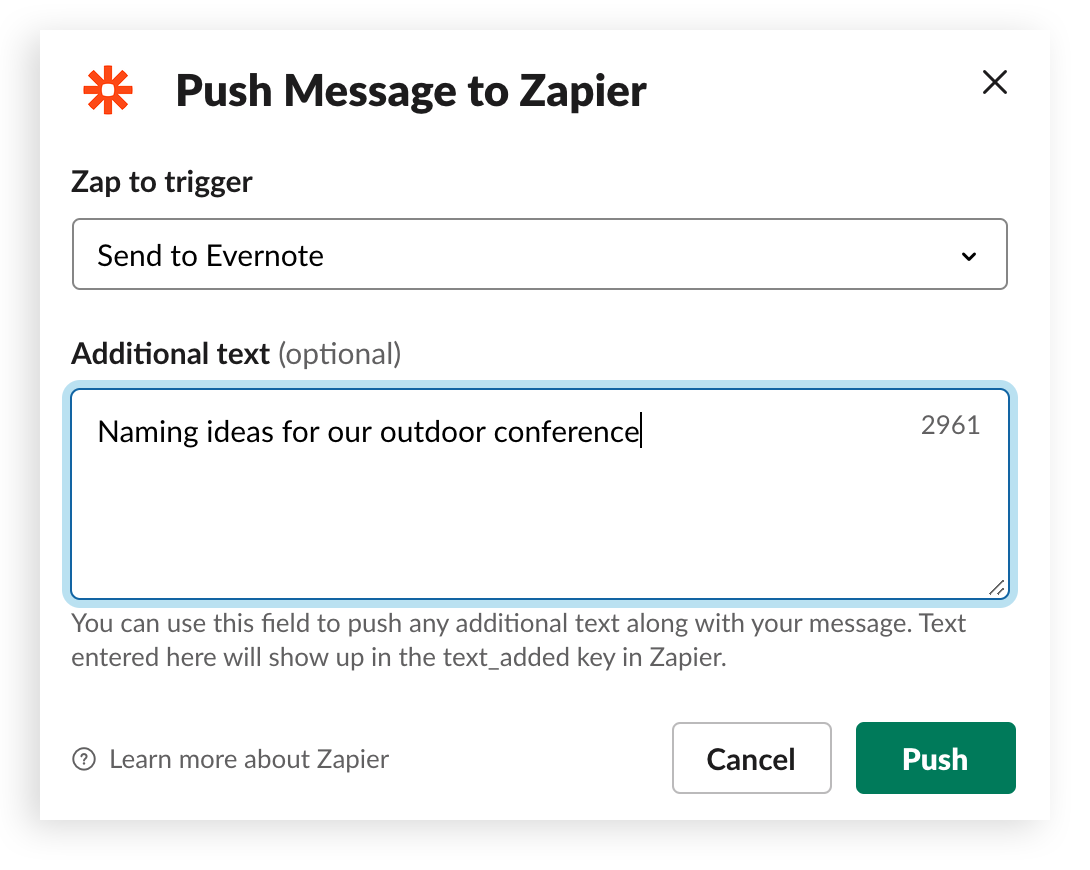
For example, you can configure pushed Slack messages to append to any of your Notebooks in Evernote, and format those new notes as you see fit.

Once configured, any time you spot a message you want to save for later, hit the Actions menu, write a note to yourself as additional text, then see it show up in Evernote or Microsoft OneNote shortly after.

Whatever system you use to organize your projects, ideas and thoughts, Zapier can serve as a bridge between Slack and your favorite way to organize. Try it today to help you keep tabs on good feedback, stay ahead of all your projects and never let a good idea slip away.
 Awesome!
Thanks so much for your feedback!
Got it!
Thanks for your feedback.
Oops! We're having trouble. Please try again later!