About this use case
Project tracking becomes complicated when the information you need is scattered across spreadsheets, task management tools, email threads, and other apps. Task instructions might live in one tool, while the conversation about a deadline happens elsewhere. Team members waste time hunting for context, while project leads can't easily tell what's moving forward, what's blocked, and who owns the next step.
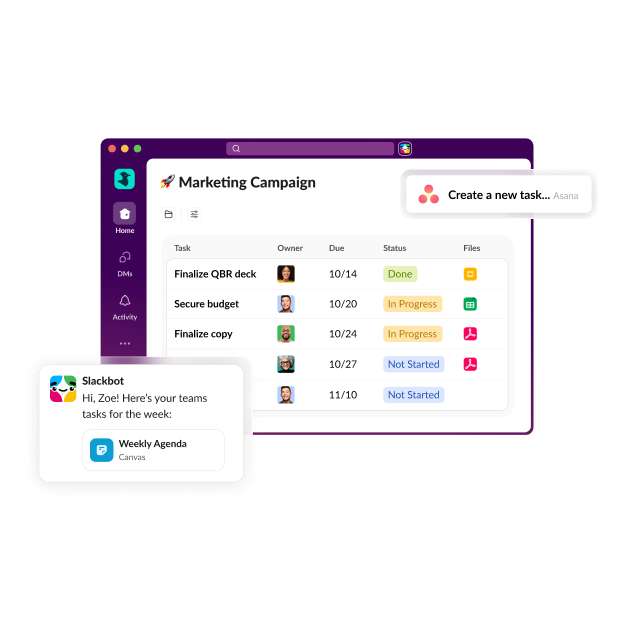
Slack brings all your project tracking into the workspace where your team already communicates and collaborates. Integrate your existing project apps, then use native Slack features to streamline progress. Use channels to keep conversations connected, lists to assign and monitor tasks, canvases to centralize key information, and workflows to automate reminders.
Using Slack for project tracking gives your team a shared, unified place to follow progress, find context, and keep work moving.
How to track projects using Slack
A project lead shouldn't have to message three people to find out if a deliverable is on schedule. Team members shouldn't have to scan a month of email threads to determine who owns the next step. And no one should be caught off-guard by a missed deadline.
Slack gives teams a shared view of work being done on a project as it moves forward. In a dedicated project channel, team members can discuss what needs to happen, turn the resulting action items into a list of assigned tasks, and document the decision in a canvas. Workflow processes can be created to send weekly progress reports or remind people about upcoming deadlines. If a task stalls, the project lead can quickly see what's holding it up along with the conversations and decisions that explain it.
These Slack features help teams build a connected project tracking process:
Track project progress with Slack channels
Creating dedicated Slack channels for each project keeps everything in one place, so you never have to go digging through emails or documents to find information. Every team member sees the same conversation, pinned messages, and shared files through the channel's history — and it's searchable. If you use Slackbot, you can even conversationally ask something like, "Where did we land on the Q2 marketing budget?" and you'll get a response that summarizes the information without you having to look for anything.
Using consistent naming conventions is the best way to identify, find, and manage project channels. For example, if a team is working on overhauling your website, you might create channels named #siteupdate-planning, #siteupdate-build, and #siteupdate-qa. Since the names follow a pattern, it's easier to scan the sidebar to find the right conversation. Plus, as phases of the project are finished, you can archive channels that are no longer needed.
Manage project tasks with Slack lists
A conversation about a new customer campaign might end with one person agreeing to draft the copy, another promising to design the creative, and a third taking responsibility for final approval. As new messages fill the channel, those commitments can become difficult to track. Slack lists turn those conversational action items into structured tasks while preserving the context behind them.
Here's how to turn a message into a task:
- Hover over the message and click the three dots icon.
- Select "Add to list."
- Find and select the appropriate list, then click "Add."
- In the item details that open, click the relevant fields.
If the list doesn't contain a field you need, you can manually adjust it. Team members can update these fields as work progresses, giving the project team visibility into who owns each task, when it's due, and where it stands. You can also adjust the layout of the list (in a table or board format) or add subtasks. This lets you divide the assignment into smaller steps, each with its own assignee and due date, and track them directly in Slack.
Create project hubs with canvas
When project plans live in one document, meeting notes in another, and key links are scattered across messages, team members can easily work from outdated information. A Slack canvas creates a shared project hub for the brief, goals, timeline, roles, decisions, and resources.
For example, a website redesign team could designate sections in the canvas for project milestones, stakeholder responsibilities, approved designs, and launch requirements, then update them as the project progresses.
The canvas stays with the channel, accessible in a tab at the top, making it easy for team members to find current project information. You can add links to important files and resources or copy a Slack list directly into the canvas. Any user in the channel can open the canvas to review or update it and then return to the related conversation without having to leave Slack to search for information elsewhere.
Automate project updates with Workflow Builder
A project lead may spend every Friday asking the same questions: What did you complete this week? What are you working on next? Is anything blocking progress? Workflow Builder can send that request automatically, providing the team with a predictable update cadence and sparing the project lead from chasing down responses.
You can take the same approach with daily standups: set up a workflow to post an asynchronous check-in each morning, collect everyone's updates in a single thread, and route anything marked "blocked" to a dedicated channel for follow-up. For longer projects, schedule recurring weekly status prompts so progress never slips through the cracks. If you use external tools like Asana, Jira, or Salesforce, you can have that information flow into Slack, too. Integrated apps can sync and send notifications and updates to the project's Slack channel, keeping everyone aligned in one collaborative space.
Use templates to standardize project tracking
Instead of reinventing your project tracking system every time, you can start with Slack templates for a consistent, ready-made foundation. Preconfigured channels, canvases, lists, and workflows give teams the framework they need from the project start, so they can get going on the work right away.
Slack's project tracker template gives teams a ready-made structure for tracking tasks, statuses, assignees, and due dates. The project management starter kit includes a project overview canvas, task tracker list, and workflow that automatically posts when tasks are updated.
Starting with the same structure saves setup time and keeps tracking consistent across multiple cross-functional projects, making it easier for teams to stay aligned and for leaders to compare progress from one initiative to the next.
Connect project tools with Slack integrations
If your team uses multiple tools to manage project work, Slack integrations can bring that activity into the same workspace as your conversations. Integrate 3rd-party tools like Monday.com, ClickUp, or Claude to use those tools within the Slack platform. Updates from calendars, task management tools, file storage platforms, and reporting systems can appear in the relevant project channel.
For example, a designer could change the due date for a campaign asset in your task management tool directly from Slack. Then, the writer, project lead, and other stakeholders can see the update in the space where they're already working. The team can do a quick huddle to discuss how the delay affects the launch schedule without waiting for the next status meeting.
Instead of checking each project tool throughout the day, team members can spot changes that affect their work and respond where the project conversation is already happening.
The fact that Slack exists and is such an essential tool, it's really helped us with scaling and still feeling connected to one another across remote offices and remote teams.
Benefits of using Slack for project tracking
Slack helps make project management efficient by keeping the task-tracking aspect close to the conversations, tools, and files connected to the work. Instead of separating project updates from day-to-day communication, teams can track progress in the same space where they share information, solve problems, and make decisions.
Key benefits include:
- Improved project visibility. Keep tasks, updates, deadlines, and project conversations accessible so your team can see how work is progressing and identify blockers.
- Faster status updates. Share progress in channels and use workflows to automate recurring check-ins and status requests.
- Better team accountability. Assign owners and due dates in lists so everyone can see who is responsible for each task and when it's due.
- Reduced context switching. Connect project tools with Slack integrations so your team can receive relevant updates without repeatedly moving between apps.
- Easier access to project information. Keep conversations, files, documentation, tasks, and other project resources connected and easier to find.
- More consistency in tracking. Use templates and automated workflows to create repeatable processes for tracking and reporting progress across projects.
7 best practices for project tracking in Slack
Effective project tracking depends on giving everyone a clear view of what's happening, who owns the work, and what needs attention next. In Slack, you can create a consistent tracking process by keeping project information connected and establishing clear expectations for how your team shares and reviews progress.
Use these best practices to keep projects organized and moving forward:
- Create a central location for project updates. Give each project a dedicated Slack channel where your team can share updates, decisions, files, and other important information.
- Define clear ownership of tasks and milestones. Use Slack lists to assign tasks, set due dates, and make it clear who is responsible for moving each piece of work forward.
- Use consistent update processes. Establish a regular cadence for sharing project status and use templates to give teams a consistent structure for tracking and reporting progress.
- Keep project context connected to conversations. Discuss tasks and decisions in project channels and use canvases to keep supporting documentation and resources close to the conversations about the work.
- Automate recurring updates and reminders. Use Workflow Builder to schedule status prompts, collect updates, and remind team members about recurring project check-ins.
- Make project information easy to find. Keep key resources in your project channel and canvas, and use clear naming conventions so team members know where to look for project information.
- Review progress regularly with stakeholders. Share status updates with stakeholders regularly so they can see progress, understand blockers, and stay informed about changes that affect the project.
Why project tracking is necessary for modern teams
Project tracking gives you and your team an ongoing view of how work is progressing, making it easier to identify issues before they cause delays and see when priorities or timelines need attention. Clear visibility into tasks, milestones, deadlines, and ownership also improves accountability because everyone knows what they're responsible for and what needs to happen next.
That shared view helps teams make informed decisions based on the current state of a project rather than piecing together updates from different sources. In Slack, project tracking happens alongside the conversations and collaboration that move the work forward. Channels, lists, canvases, workflows, templates, and integrations keep project information connected, giving teams the context they need to understand progress, address problems, and decide on next steps.


