About this use case
Anyone who manually tracks their hours knows the extra work it takes to log into a time-tracking tool and detail the hours and minutes spent. You end up toggling between multiple systems and tags, going from working on the project in one tool, communicating updates in another, then logging your time in a third. You're moving fast, and you're multitasking — and that's how mistakes are made.
A work operating system like Slack simplifies project work, bringing together communication, projects, and time tracking through integrations and workflow automation. Common hurdles are then removed: no more manual data entry, forgetting to submit a timesheet, context-switching, or inconsistent reporting. Slack closes the gaps between daily work, project progress, and accountability.
How to do time tracking in Slack
Successful time tracking happens alongside daily workflows and is an integrated part of the tools where you already spend the most time. Here are some of the easiest ways to implement time tracking in Slack:
Integrate a third-party time-tracking app
In the Slack Marketplace, you can connect to thousands of Slack integrations, including dedicated time-tracking apps that let you start timers and log hours directly within channels. For example, Slack connects with apps like ClickTime, Jibble, or TrackingTime.
Here's how it works:
- A workspace admin searches for and installs an app from the Slack Marketplace after reviewing its requested permissions and then approves the OAuth request to allow the app to post messages and read basic workspace data in Slack.
- Once installed, each team member connects their own account by authenticating through a message from Slackbot, which confirms the connection.
- Slackbot will also explain the available slash commands to use within a channel or direct message. For example, someone starting a client call might use a command to begin tracking billable hours in Jibble by typing "/jibble in" and then typing "/jibble out" when the call is finished. Someone switching between two projects can use a command to stop one timer and start another using TrackingTime by typing "/tt start [Task Name],,[Project Name]". Someone who completed a task without a timer can use a command to log the time right away in ClickTime by typing "/ct time" and filling in the time entry prompt.
- Managers can also review daily and weekly totals through an app's home dashboard within Slack, so that logging and approving time becomes an integrated part of the workday.
Sync project management and billing integrations
Rather than installing a dedicated time-tracking app, you can connect and sync with other platforms your team already uses for project work and billing. For example, billing tools like Harvest sync logged hours with client and project records, while project platforms like Jira Cloud and Asana let you attach time directly to a specific task or issue key. In these cases, Slack acts as the front end for that data instead of requiring a separate login.
This gives you options for how and where you log your time. You can attach time entries to specific tasks or issue keys directly within Slack messages or notification threads. For example, after resolving a bug, a developer could reply: "1.5 hours on Jira ticket PROJ-123." This also provides visibility; a project manager monitoring task management in Slack can see logged hours alongside open items in a sprint. Time logged within Slack then syncs back to the system, so there are no duplicate entries.
Automate timesheet nudges with workflows and Slackbot
Having the ability to log time from within Slack doesn't mean that everyone will remember to do it. Setting up automated reminders keeps time tracking consistent across your team. There are two straightforward ways to build automated reminders in Slack using either Workflow Builder or Slackbot.
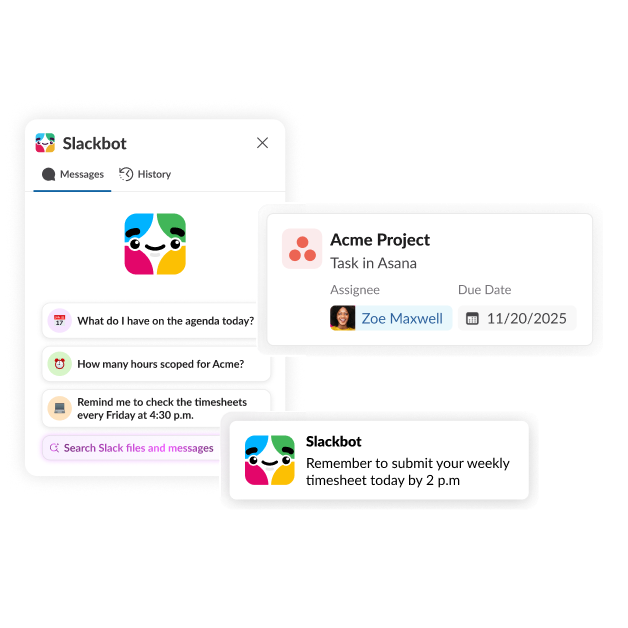
- Using the Workflow Builder, you create automated recurring prompts (such as "submit a weekly timesheet every Friday at 4 p.m.") that appear with a button or clickable link to the app.
- Using Slackbot, you can set a reminder command ("/remind me to check timesheet every Friday at 3:00 p.m.") to set a private reminder that only you see. Some time-tracking integrations pair with Slackbot to flag unlogged or unsubmitted hours ahead of a payroll deadline.
Together, these tools mean a manager doesn't have to chase down timesheets by hand. Reminders are scheduled so that only the people who need to see them are notified.
Slackbot has quickly become one of the most used AI tools in our stack, and is one of the fastest ways to turn a question into action.
Benefits of using Slack for time tracking
Slack becomes the workspace where time tracking is part of everyday collaboration. When logging hours happens next to the conversations, files, and tasks a project already generates, teams see several benefits:
- Better adoption. Logging time inside a channel or direct message removes the friction of remembering to open a separate app.
- Less manual administration. Automated reminders and connected integrations cut down on the follow-up messages and spreadsheet reconciliation that used to eat into a manager's week.
- Improved project visibility. Logged hours sit next to tasks and project updates, so anyone can see current status and where time is going.
- More accurate reporting. Fewer manual entries and more consistent time entry mean fewer transcription errors or missing data when hours get pulled into invoices or reports. You can even use Slack AI to help summarize project conversations or remind you what you worked on — making it easier to log hours accurately without digging through old threads.
- Reduced context switching. You can stay in Slack instead of bouncing between multiple tools, meaning better team productivity.
- Better team accountability. Visible, timestamped entries make it easy to confirm who logged what and when.
Time tracking best practices
Time tracking requires consistency, so it's helpful to build it into a habit or routine. The goal is to make it easy to access and complete. Here are some top time tracking tips:
Make time tracking part of daily work
Log hours in the same channels used for project discussion so you don't need to navigate to a separate tool.
Automate reminders
Use a scheduled workflow or a personal Slackbot nudge to remind you to log your time before a deadline approaches.
Connect time tracking to projects
Attach entries to specific tasks or issue keys instead of logging a generic daily total.
Reduce manual entry wherever possible
Use slash commands or timers in the moment instead of calculating and logging hours later.
Review reports regularly
Check reports weekly or biweekly to catch missing entries before you're pinged by your account team.
Standardize processes across teams
Make sure everyone logs time the same way, with the same cadence.
Choose integrations that fit existing workflows
Avoid adding unnecessary tools that duplicate your work; opt for productivity tools that can fit right into your existing workspace.
Combining time tracking and team collaboration with Slack
Logging hours becomes easier to remember to do when connected to related conversations, projects, and workflows. Slack keeps time data anchored to that context because it lives in the same workspace as the work itself: the channels where teams discuss the project, where task lists are visible, and with Workflow Builder or Slackbot to help keep everything on schedule. It's also easy to extend this setup with integrations that pull in data from the tools your team already uses, or with shared lists that keep everyone aligned on what's due and when.
If you're building this out for the first time, you don't need to start from scratch. The Slack Template Gallery includes pre-built workflows for common approval and reporting processes — and it's a great way to explore how Workflow Builder, Slackbot, integrations, lists, and channels can work together to support your team's time-tracking habits.


