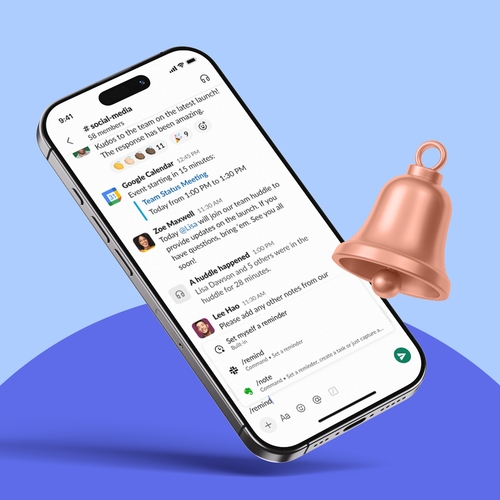
Reminder systems bring all your appointments, project tasks, and personal to-do items into one place, helping you simplify your workday and maintain mental clarity.
They’re a smart solution when the average workday overflows with meetings, emails, projects, reports, and more — memory alone isn’t enough to keep everything in check.
But which reminder system is right for you? Here’s what you should know about the types of systems available, their benefits, and the features that make them stand out, plus our curated list of the best systems for 2026.
What is a reminder system?
A reminder system is a tool or process that keeps your to-do list organized and sends you an alert when it’s time to complete each item. Reminder systems can come in the form of apps, software, automations, or recurring reminder workflows. Some are designed to help you manage your appointments and meetings, while others focus on personal reminders (“pick up dinner on the way home”) or team reminders (“submit your time sheet by 5 p.m.”). But the goal of all of these is the same: to help you manage your day in a timely manner.
Types of reminder systems
While the goal is the same — to ensure timely action — types of reminder systems vary. Popular choices include:
- Email reminders. The system sends you an email with the event or task, date, time, location, and other key information. These reminders work well when you need specific details about a task.
- Text alerts. Short SMS messages provide a nudge about an upcoming task. Text alerts are perfect for appointment reminders and items on a checklist.
- Calendar integrations. Reminder automation software syncs with your calendar and to-do list, so all your information is kept in one place. Changes in one system automatically update in other synchronized systems.
- Task managers. Task management software handles scheduling, task creation, organization, team assignments, and alerts, acting as a virtual assistant to help you meet all your deadlines. For example, you can use them to create project milestones, deadlines, and individual tasks for your team.
- Broadcast reminders. The system sends automated reminders simultaneously to every member of a group, such as a company-wide announcement or department deadline. Reminders may be sent through email, text, or pop-up notification.
- Contextual reminders. Location-based reminder systems send notifications when you enter or leave a geographic area. For example, you might receive a reminder to “ask about PTO” when arriving at work.
Why are reminder systems essential in today’s workplace?
When your brain is already operating at full capacity, remembering every meeting and deadline becomes nearly impossible. According to the Society for Human Resource Management 2024 State of Employee Mental Health survey, 44 percent of American workers feel burned out, and an additional 30 percent often feel stressed. This constant state of stress has been linked with mental fatigue, reduced ability to remember tasks and appointments, and greater difficulty switching between tasks. Meetings are forgotten, deadlines get missed, and stress rises.
Reminder systems create mental space and reduce stress by outsourcing the effort of remembering every task. They can help you stay on track in several key ways:
- Reduce missed meetings and deadlines. Rather than flipping through your mental calendar, you can rely on the system to remind you of key meetings and tasks.
- Improve follow-through and accountability. Reminders help you automate repetitive workflows and complete tasks on time, increasing trust with colleagues and managers.
- Lower mental load and decision fatigue. Offload the mental responsibility to keep track of every task, and trust the system to keep you on track.
- Boost consistency and reliability. Use filters and sorting to ensure you’re always working on the most important tasks, not just the most urgent.
- Improve team coordination. Keep teams on the same page with shared task lists and reminders.
What features should you look for in a reminder system?
Reminder systems are only effective if they fit in your daily workflow. Whether you want to receive a text notification about office birthdays and activities, or you need to send deadline reminders to your entire team at work, look for a system that adapts to your existing needs.
- Timing and notification controls for recurring reminders. When your phone is constantly buzzing with messages throughout the day, it’s easy to get distracted — or start ignoring them. Avoid “alert fatigue” with a reminder system that allows you to customize the timing and frequency of notifications.
- SMS, email, and push notifications. Do you check your email consistently, or is texting your go-to communication channel? Are you active in your team’s Slack channel? Choose a system that can send reminders in the tools and apps you already use.
- Team collaboration. The system should integrate with your team’s data and applications to keep everyone on the same page. For example, an AI agent like Slackbot can automatically create and send reminders for upcoming deadlines, meetings, and tasks based on internal documents and conversations.
- AI smart scheduling. Smart scheduling uses AI to manage your meetings, tasks, and personal responsibilities automatically. AI reminder tools may adjust your schedule based on task priority, block out time for tasks, rearrange calendar items when deadlines change, and send automated text or email reminders.
- Integrations. Choose a system that integrates with the applications you already use, such as Slack, Outlook, Google Calendar, Salesforce, or your project management platform. It should be able to sync items from various sources so you don’t have to set reminders in each separate app.
What are the best reminder systems and apps for 2026?
We’ve rounded up the top eight reminder systems based on ease of use, features, integrations, team collaboration, and value. This list is curated from G2, and all software/tools have a minimum rating of 4 out of 5 stars, so you know you’re choosing from the best.
Best for teams: Slackbot and Slack Reminders
Slack has a personal AI assistant built into its platform. Slackbot has access to the same Slack discussions, files, and data you have, so you can easily set reminders in Slack for yourself using plain-language requests with the /remind command. Ask Slackbot to remind you about tasks, meetings, and recurring events in the context of your work, and get automated suggestions based on your calendar.
You can also use Slack for task management by creating reminders for teams in a specific Slack channel. For example, you could tag the graphic design team to remind them of their weekly check-in like this: /remind #graphic-design-team to attend the weekly agenda meeting every Monday at 9 a.m.
Who it helps: Teams that collaborate on shared projects and tasks using Slack
Features:
- Integrations with 2,600 preconfigured apps and agents
- Automated meeting time suggestions based on Google or Outlook calendars
- Channel-specific reminders in your team’s flow of work
- Slack workflow automation for recurring reminders
Pricing: Pricing tiers per user per month, based on which capabilities you need
Best overall: Todoist
Todoist offers streamlined task management for individuals and teams. Users can add tasks in plain language, and Todoist will organize them and create a schedule. Tasks can be filtered by category, and schedules can be rearranged efficiently with the drag-and-drop feature.
Tasks and subtasks, flexible views (list, board, or calendar), integrations with productivity tools, and shared projects help users capture all of their to-do items and view them in real time. Paid plans offer an AI assistant that generates task lists and offers suggestions for next steps.
Who it helps: Individuals and teams that need a straightforward task management system to keep tasks organized
Features:
- Daily, weekly, and monthly to-do lists
- Task creation and assignment
- Shared workspaces for teams
- AI assistant in some plans
Pricing: Tiered pricing per user per month, including a free version with basic functionality
Best for appointments: GReminders
GReminders is an AI-powered meeting management platform that offers scheduling, automations, appointment reminders, and AI note-taking. Users can choose to receive email, text, or voice reminders, no matter where the meeting originated.
GReminders determines who receives which reminders based on specific criteria like event title, category, and client. Both users and clients receive a text or email reminder about upcoming meetings. The AI assistant can generate pre-meeting briefs and create meeting summaries that can be shared internally or sent to clients afterward.
Who it helps: Teams that book high volumes of meetings and need a streamlined way to automate scheduling and reminders
Features:
- Email, text, and voice reminders
- Embedded booking calendar
- Integration with calendars, videoconferencing tools, and other enterprise systems
- Automated meeting confirmations and follow-ups
Pricing: Free basic plan with paid plan tiers based on features and number of users
Best for Apple users: Apple iCal and Apple Reminders
Apple iCal and Apple Reminders operate in iCloud, making it easy for users to sync to-do lists and task reminders across all their Apple devices. You can create reminders verbally with Siri, schedule reminders within your calendar, or add a widget to your home screen to keep tasks front of mind.
Users can share reminders and use smart lists to organize tasks based on tags and categories. AI suggestions and location-based triggers keep reminders intuitive so users can receive notifications when, where, and how they prefer.
Who it helps: Apple users who need a synchronized system for setting reminders and keeping track of to-do lists across multiple devices.
Features:
- AI task suggestions based on a web page, note, or document
- Apple Watch integration
- Shared lists and task assignments for collaboration
- Custom Smart Lists based on tags, date, time, location, and priority
Pricing: Free for Apple users
Best for Google users: Google Tasks and Calendar
Google Tasks syncs across all Google devices and integrates with Gmail, Google Calendar, and Google Assistant. Users can create tasks directly from emails or calendar events and organize them by topic or priority. They can also use Google Assistant to create reminders verbally.
The calendar integration creates and sends alerts for events and appointments based on your schedule. Users can add multiple reminders with custom times, such as 30 minutes before or one day before.
Who it helps: Google users who want to synchronize calendars and to-do lists across Google apps and devices
Features:
- Subtasks to break down complex tasks
- Drag-and-drop task reordering
- Integration with Gmail, Google Assistant, and Google Calendar
- Third-party add-ons for persistent alerts
Pricing: Free for Google users
Best for project workflows: Asana
Asana keeps teams on the same page by organizing project workflows and tasks all in one place. Tasks can be assigned to individuals with due dates and can be linked to approvals or contingent tasks. Once tasks have been created, users can sync them with their external calendars and create rules for automated alerts.
Asana can send notifications within the platform, through email, or through integrations like Slack. Users can also receive notifications in Slack when work is assigned to them in Asana or a project is updated.
Who it helps: Teams that need to manage collaborative projects and workflows with notifications, task assignments, and due dates
Features:
- Task and project creation, assignments, and tracking
- Subtasks, approvals, and conditional task blockers
- Integrations with third-party apps and productivity tools
- Custom rules for automated reminders and alerts
Pricing: Tiered pricing based on available features charged per user, per month; free personal plan available for one or two users
Best for automation: Zapier
Zapier is an AI automation platform that creates automated workflows triggered by specific events or actions. It connects apps and platforms, allowing users to design custom workflows with the tools they already use. To create automatic reminders in Zapier, users must define a trigger (such as a new calendar appointment) and a desired action (sending a reminder message in Slack).
Zapier also offers customizable AI agents that create automatic reminders from any connected app or platform. This helps keep tasks organized across systems without users having to create to-do lists or set reminders manually.
Who it helps: Workers who need to create AI automations that manage tasks and reminders across multiple platforms
Features:
- 9,000+ app integrations
- AI agents that function across platforms
- Pre-built automations for common reminder workflows
- Custom automations with multistep workflow options
Pricing: Tiered pricing plans for professional, team, and enterprise use cases; free plan available for individuals
Best for AI assistance: Reclaim.ai
Reclaim.ai is an AI-powered scheduling tool that automatically schedules tasks, syncs with the user’s calendar, and reorders tasks as needed based on priority. Reclaim integrates with popular project management platforms and can send event and meeting reminders by email or through the user’s calendar notification system. The platform automatically notifies users when a meeting is canceled or rescheduled. It can also build in recurring tasks, focus time, breaks, or buffer time.
Who it helps: Users who need to manage their calendar efficiently with automated scheduling
Features:
- Automatic scheduling for tasks, meetings, and events
- Integrations with platforms like Slack, Asana, and ClickUp
- Calendar syncing with Microsoft Outlook and Google
- Scheduling links that can re-prioritize tasks according to priority
Pricing: Tiered pricing based on the number of users and available features, billed monthly or annually; free plan available for individuals
How to set up reminder systems in Slack
Slack keeps your team connected and collaborative, and Slackbot helps you manage your workflows more efficiently. Within that system, Slack reminders keep you on task and on schedule as you move through your day, all within the space you already work.
Here’s how to streamline your workday with Slack reminder systems:
- Schedule recurring team prompts in channels. Use the /remind command to deliver recurring reminders to a specific channel. Specify the channel name and how frequently you would like the reminder to be sent. For example: /remind #writer-team to submit hours every Monday. For more involved workflows, you can use the scheduled message template in Workflow Builder, which gives you greater control over message content, timing, and frequency.
- Connect calendars, tasks, and workflows via integrations. Slack integrations let you receive task, event, and workflow reminders from your calendar or project management platform directly in Slack. To get started, install the app from Slack Marketplace and connect your account and calendar to your Slack workspace. Once connected, you can configure notifications by selecting the app from the Tools tab in the sidebar.
- Use Slackbot for personal reminders and follow-ups. The /remind command asks Slackbot to send you personal reminders for one-time tasks as well as for recurring reminders, follow-ups, and future events. Use the command to receive a notification at a specific date and time. For example: /remind me the day before to bring chips for the office party on Dec. 15.
- Set reminders inside your daily communication flow. You can set reminders from any message or file in Slack by hovering over the item and clicking the three dots in the top-right corner. Select “Remind me about this” and choose a time, or create a custom time you want to receive the reminder notification. You can also use the “Later” tab in the sidebar to create personal reminders and check them off as they are completed.
Build a reminder system that works
The best reminder system is the one you don’t have to think about. When reminders synchronize with your communication channels, calendar, and daily work, they keep you on task without adding to your mental load. Slack reminder systems and Slackbot bring all your workflows together in one place, so your team has more time for the work that matters most.
This article is for informational purposes only and features products from Slack, which we own. We have a financial interest in their success, but all recommendations are based on our genuine belief in their value.
Reminder systems FAQs
 Super!
Vielen Dank für dein Feedback!
Okay!
Vielen Dank für dein Feedback.
Hoppla! Wir haben gerade Schwierigkeiten. Bitte versuche es später noch einmal!